[!example] 插件名片
术语解说
批注在正文中的储存格式示例:
We should <!--c:k3f9-->ship on Friday<!--/c:k3f9--> regardless of the QA timeline.
<!--co:k3f9 by:kyle at:2026-06-17T10:00:00.000Z status:open quote:"ship on Friday"
kyle (2026-06-17T10:00:00.000Z): I thought we agreed Thursday?
sam (2026-06-17T10:05:00.000Z): Thursday is better for QA.
-->
在移动端由于空间不够,批注无法悬浮于文本旁
基本用法
[!example] 如何添加批注?
选中想要批注的文本,在命令面板中运行Document Comments: Add comment on selection或直接右键点击执行Add comment命令,即可在正文右侧唤出悬浮批注框,它会随着被批注文字的移动而移动

如果想要对已有的批注进行回复、勾选、编辑、删除或添加表情,单击批注框,或鼠标悬浮其上点击对应按钮
[!example] 如何打开批注侧边栏?
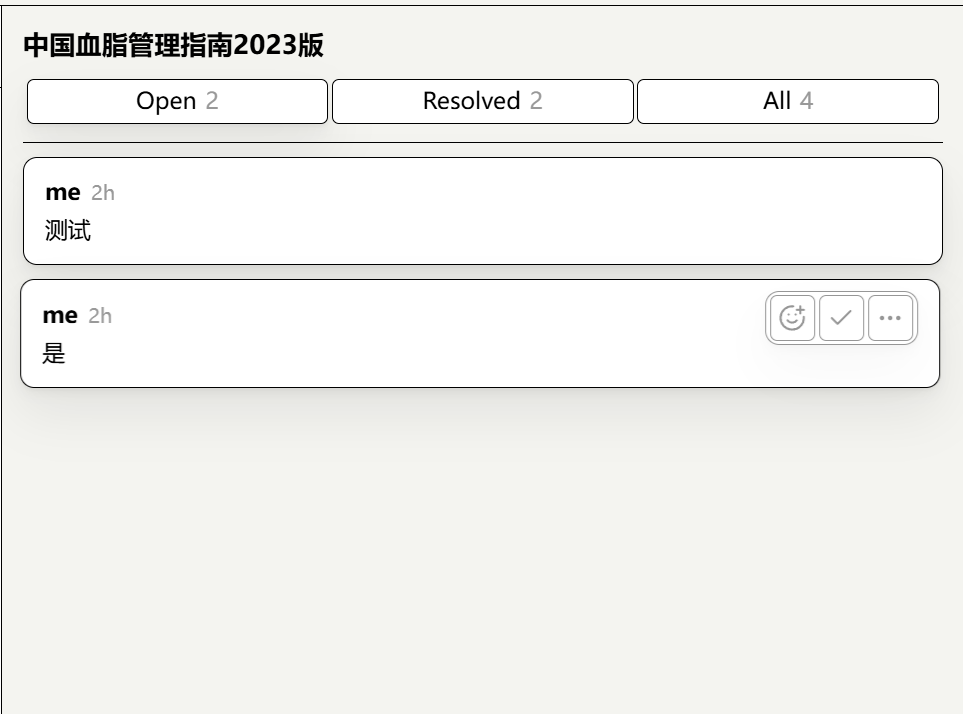
在命令面板中运行Document Comments: Open Comments sidebar,可打开批注侧边栏,可查看活跃、已勾选或全部批注,单击即可跳转至正文位置
设置说明
Author:空白栏中填入的文本将被视为批注者的默认姓名
Show comments:如启用,则显示批注栏,命令面板中的Document Comments: Toggle comments命令具有同样效果
Show resolved comments:如启用,则显示已经勾选的批注,命令面板中的Document Comments: Toggle resolved comments命令具有同样效果