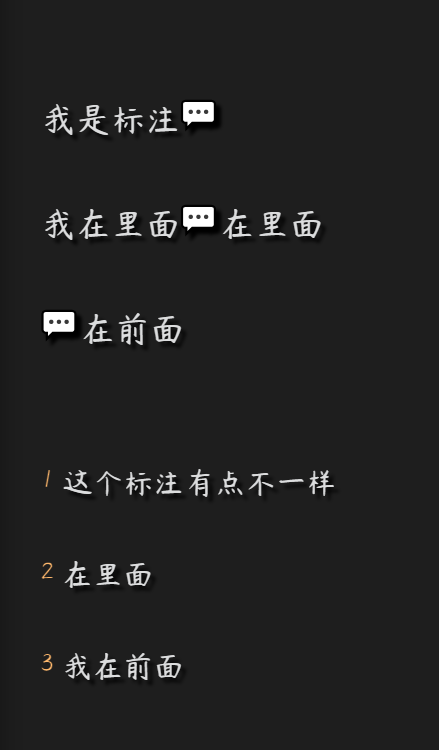
/* 隐藏 Obsidian 核心 Page Preview (页面预览/脚注预览) 弹窗的标题栏 */

/* 1. 针对核心弹窗的标题栏,使用您提供的类名 */
div.popover-titlebar {
    display: none !important;
}

/* 2. 确保内容区域向上移动,填补被隐藏标题栏的位置 */
/* 核心弹窗通常使用 .popover.hover-popover-note 作为父容器 */
.popover.hover-popover-note .popover-content {
    /* 移除内容区域顶部的默认内边距,确保内容贴边 */
    padding-top: 0 !important;
}

/*
 * CSS 片段名称: increase-footnote-popup-text-size.css
 * 描述: 增大页面预览弹窗(包括脚注弹窗)中的文字大小
 */

.popover.hover-popover .markdown-preview-view {
    /*
     * 调整为你希望的字体大小。
     * 1.1em 比默认字体(1.0em)增大 10%。
     */
    font-size: 1.4em;

    /* 可选:如果你想同时增大行高,使阅读更舒适 */
    line-height: 1.6;
}


/*
 * 针对 编辑模式 (包括源文件模式和实时预览模式) 增大文字大小
 * 对应的主体容器类是 .cm-editor 或 .markdown-source-view
 */


/*
 * CSS 片段名称: increase-footnote-popup-text-size.css
 * 描述: 仅增大悬停弹窗(包括脚注弹窗)内的文字大小。
 */

/*
 * .popover.hover-popover 目标是 Obsidian 的所有悬停预览弹窗。
 * .markdown-preview-view 目标是弹窗内的预览渲染内容。
 */
.popover.hover-popover .markdown-preview-view {
    /*
     * 调整为你希望的字体大小。
     * 1.1em 比默认字体(1.0em)增大 10%。
     */
    font-size: 1.5em;

    /* 可选:如果你想同时增大行高 */
    line-height: 1.6;
}


/*
 * 针对所有同时是“悬停弹窗”且“包含编辑器”的元素
 */
.popover.hover-popover .cm-editor {
    /*
     * 增大弹窗内的编辑文本大小
     */
    font-size: 1.7em !important;
}
/* 隐藏处于编辑状态的预览弹窗的边框和外轮廓 */
.popover.hover-popover.is-editing {
    /* 隐藏外轮廓线 (outline) */
    outline: none !important;

    /* 隐藏边框线 (border) */
    border: none !important;

    /* 也可以单独设置边框颜色为透明,确保它不显示 */
    border-color: transparent !important;
}


.cm-s-obsidian span.cm-footref.cm-hmd-barelink, .cm-s-obsidian span.cm-blockid {
    color: var(--text-muted);

}

/*
 * 最终修复方案:隔离源码模式 + 解决符号重复问题。
 * 我们使用 :not(.is-source-mode) + 假设 CodeMirror 编辑器中脚注引用的所有部分都是兄弟元素。
 */

/* ================= 隔离源码模式:使用更强的排除规则 ================= */

/* 选择所有【非源码模式】的 CodeMirror 编辑器内的脚注引用 span */
.markdown-source-view:not(.is-source-mode) span.cm-footref.cm-hmd-barelink {
    /* 1. 隐藏原文本 ([^2] 的每个部分) */
    font-size: 10px !important;
    line-height: 3 !important;

    /* 2. 确保不占用空间,并为伪元素定位做准备 */
    margin: 0 !important;
    padding: 0 !important;
    position: relative;
    display: inline-block; /* 确保它是一个可操作的块级元素 */
}


/* ================= 解决符号重复问题:只在最后一个子元素后插入 ================= */

/* 1. 只在【非源码模式】下,且为【兄弟元素中的最后一个】后面插入符号 */
.markdown-source-view:not(.is-source-mode) span.cm-footref.cm-hmd-barelink:last-child::after {
    /* 插入符号 */
    content: "💬";

    /* 恢复符号的样式 */
    font-size: 25px;
    line-height: 1.1;
    margin-left: -25px;
    color: var(--text-normal);

    /* 确保符号能覆盖任何剩余的边框或背景 */
    background-color: transparent;
}


/* 2. 确保在第一个元素前没有符号(以防万一) */
.markdown-source-view:not(.is-source-mode) span.cm-footref.cm-hmd-barelink::before {
    content: none !important;
}

/* 3. 移除其他元素的::after,以防不是 last-child 的元素也生成符号 */
.markdown-source-view:not(.is-source-mode) span.cm-footref.cm-hmd-barelink:not(:last-child)::after {
    content: none !important;
}
1 个赞